For event organizers
Live captions on your phone
Start an event in your browser without installing software or contacting sales. Attendees scan a QR code and choose their caption language.
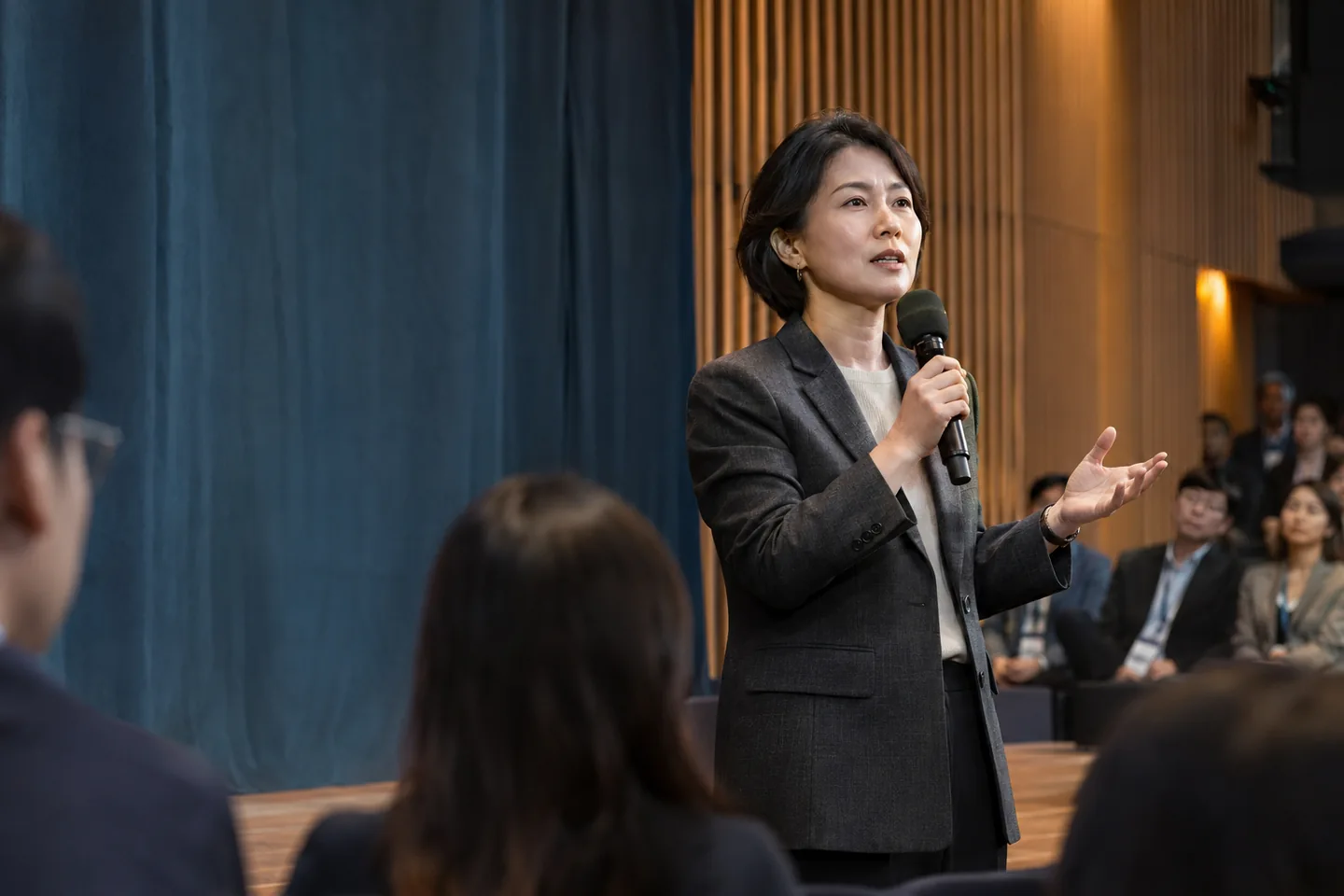
Presenter · Korean
오늘 포럼에 오신 여러분을 환영합니다.
Welcome to today’s forum.
Use the terms your audience knows
Add product names, acronyms and their preferred translations to your event glossary. ECCO uses those terms and the preceding remarks when it translates.

새 셀을 시험합니다.
We’re testing a new battery cell.
Broadcast preview
Caption quality and timing
One Korean talk · Internal evaluation · AI-scored
- Korean to English translation quality NTR
- 99.76%
- Korean caption accuracy NER
- 99.24%
- End of speech to captions in 6 languages Estimated median
- ≈4.5s
Sample and measurement method
The sample contained 1,814 Korean word units and 3,057 English words. Claude, a separate AI model from the translator, scored errors by how much they changed the meaning.
Rating each error one severity level higher gives 97.68% for Korean captions and 99.59% for English translation.
The estimate combines translation timings from 190 live segments with speech detection, sentence buffering and an allowance of 0.2 seconds for delivery and display. Timing varies with language count and network conditions.
How teams use ECCO

A keynote from an overseas speaker
- Organizer
- Connect the stage audio and print the event QR code in the program.
- Attendee
- Scan from your seat to read an English talk in Korean.
Live translated captions on the main screen
- Organizer
- Open the ECCO caption link full-screen on the venue display. To show captions over slides, add the link as a browser source in OBS.
- Attendee
- Follow the slides and read the translated captions on the main screen from your seat.
Product training across offices
- Organizer
- Add product names and acronyms to the glossary. Include the event link in the training invite.
- Attendee
- Open captions alongside the course materials and follow the instructor’s directions.
A briefing for international residents
- Organizer
- Choose the languages residents need and display the event QR code at check-in.
- Attendee
- Read the announcements and any questions and answers spoken into a microphone.
A service for a multilingual congregation
- Organizer
- Connect the church sound system and put the event QR code in the bulletin.
- Attendee
- Scan the bulletin to read the sermon in your chosen language.
Set up your own event online
Get startedOrganizer
Connect a mic and choose languages
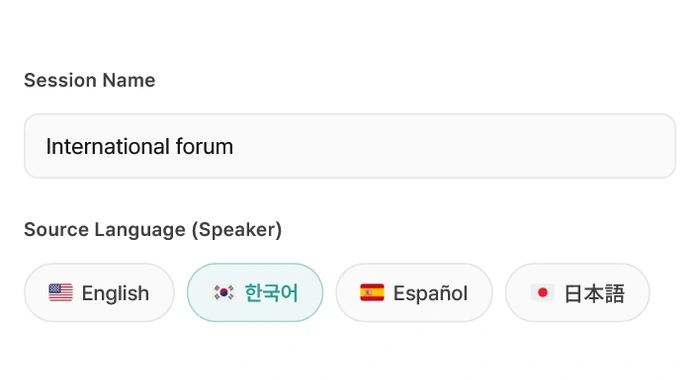
Connect the microphone to the presenter’s computer. Select the spoken language and the languages for captions.
Organizer
Share the event QR code
Show the QR code on a slide or put the event link in the invitation.
Attendee
Read captions on your phone
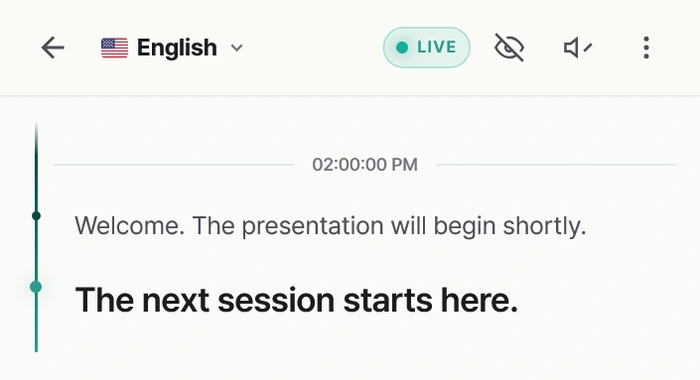
Scan the code and choose a language. Captions appear as the presenter speaks.
Try live translation for 30 seconds
Choose a spoken language and a caption language, then turn on your mic. You’ll see what you said alongside its translation.
Frequently asked questions
Do attendees need an account?
Only the presenter signs in. Attendees open the QR code or event link in a browser without downloading an app or creating an account.
What equipment does the venue need?
Use an internet-connected computer and a microphone. You can also connect the venue’s audio output to the computer.
Which languages are supported?
ECCO supports 16 spoken languages and 46 caption languages. Attendees choose from the caption languages the organizer enables.
Can I add product names or technical terms?
Yes. Add names, acronyms and their preferred translations to the glossary before the event.
Can I add captions to a livestream?
Yes. Add your ECCO caption overlay URL as a browser source in OBS to show captions over the video.
Talk to us about your event
Send us the event date, duration and caption languages you need.